A tree-structure organogram is an org chart drawn as a branching diagram: one box at the top, splitting into progressively wider levels below, the way a family tree or a directory tree fans out. It’s the layout to reach for when a structure has several levels and a lot of positions at the bottom — the branching shape keeps deep hierarchies readable where a plain stacked chart runs off the page. The free templates below are editable MS Word files. For the classic vertical pyramid see our top-down structure templates, for left-to-right layouts see the horizontal structure templates, and for the full guide to org charts including how to build one from scratch, start with our organizational chart templates.
When a Tree Layout Works Best
All org chart layouts show the same information; they differ in how well they hold up as the organization grows. A branching tree layout suits:
- Deep structures — four or more levels between the top and the front line. Branching keeps each level visually distinct instead of producing one long column.
- Wide bases — a handful of directors above many teams. The tree fans outward, so the widest level sits at the bottom where there’s room for it.
- Group and subsidiary structures — a parent organization branching into divisions, each with its own sub-branches.
- Charts that need to fit one page — branching uses horizontal space that a stacked vertical chart wastes, which often means the difference between one readable sheet and three.
It’s a weaker choice when the organization is flat — two levels drawn as a tree just looks like a stacked chart with extra lines — or when several people share one reporting line and you’d rather list them than branch them.
A Tree Structure Org Chart
Here’s the branching shape applied to a small group structure, four levels deep:
|
Managing Director
Level 1 |
|||
|
Division A — Manufacturing
Division Head · Level 2 |
Division B — Services
Division Head · Level 2 |
||
|
Production Manager
Level 3 |
Quality Manager
Level 3 |
Client Services Manager
Level 3 |
Technical Manager
Level 3 |
|
Line Supervisors ×3
Machine Operators ×18 |
QA Inspectors ×4
Lab Technician ×1 |
Account Managers ×5
Support Desk ×6 |
Field Engineers ×7
Scheduler ×1 |
Two things the tree layout does well here. The four levels stay visually separate, so anyone can see at a glance how many steps sit between the front line and the top. And the bottom row groups positions by count rather than naming every individual — “Machine Operators ×18” in one box instead of eighteen boxes. That’s the standard way to keep a branching chart on one page, and it’s what makes tree layouts practical for organizations with large operational teams.
Free Organogram Tree Structure Templates in MS Word
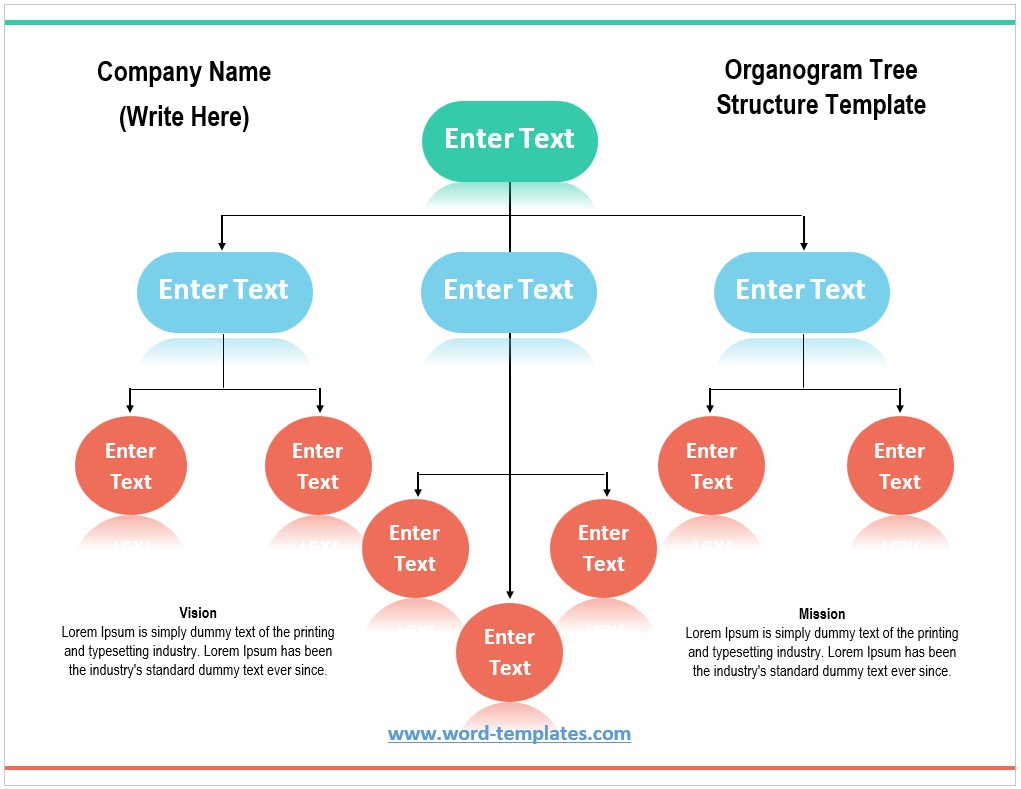
Each template below is editable in Word — replace the placeholder titles, add or remove branches, and adjust the colours to match your organization.
Four-Level Tree Structure Template
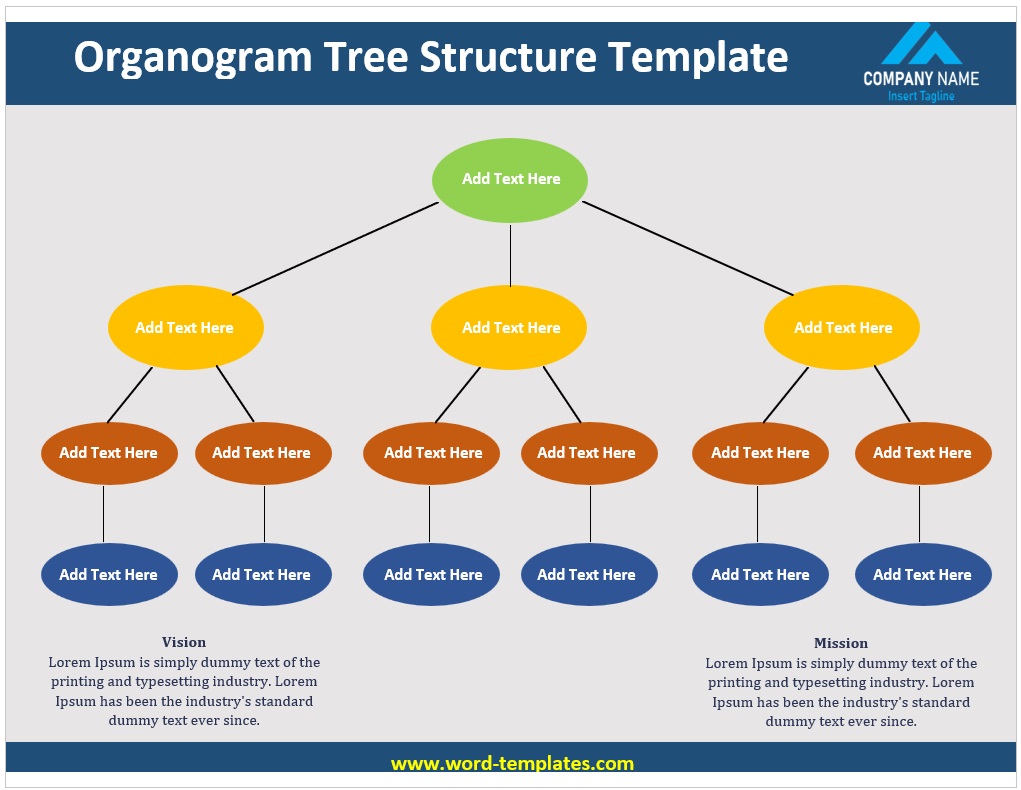
A branching layout supporting four levels with two main divisions — suited to group structures and mid-sized operations.

Wide Tree Structure Template (Landscape)
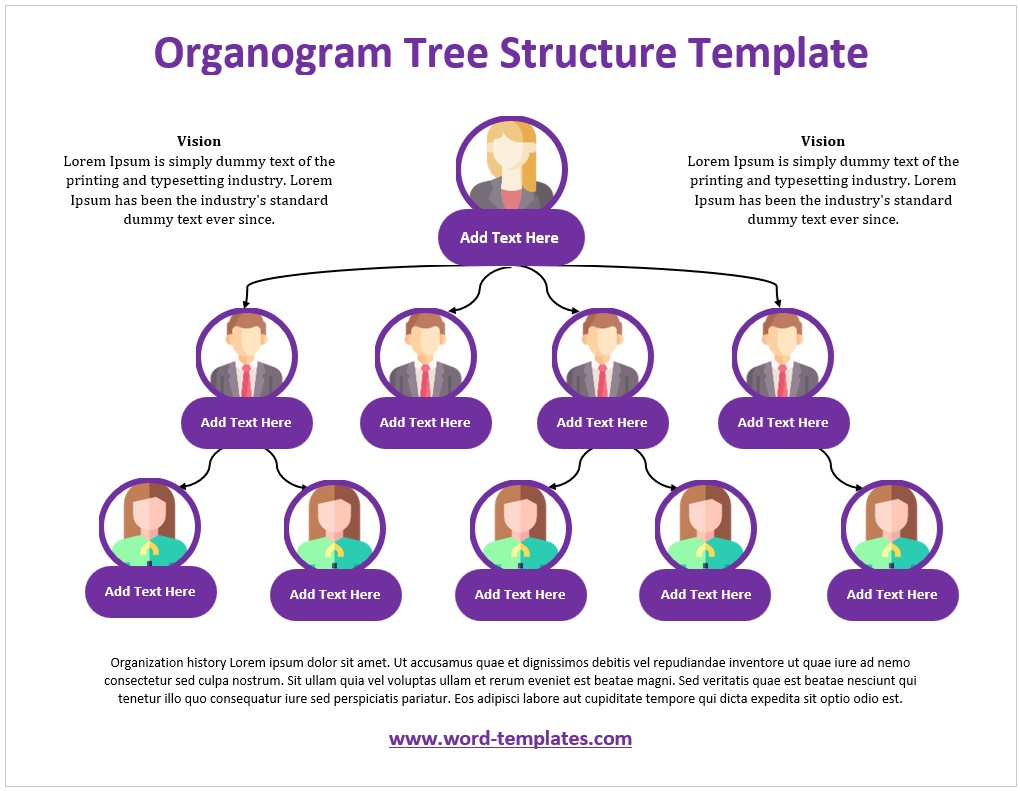
A landscape branching chart with room for five or more departments across the second level — for organizations with many parallel teams.
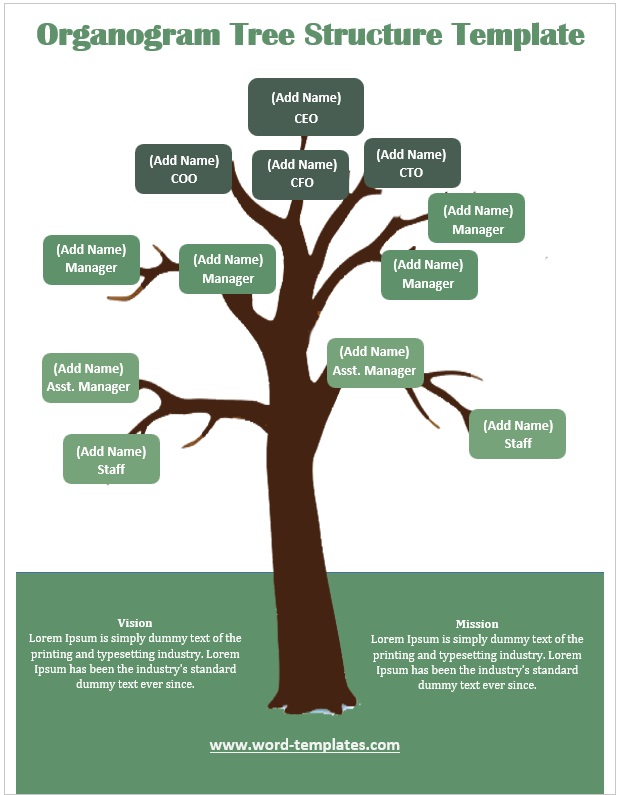
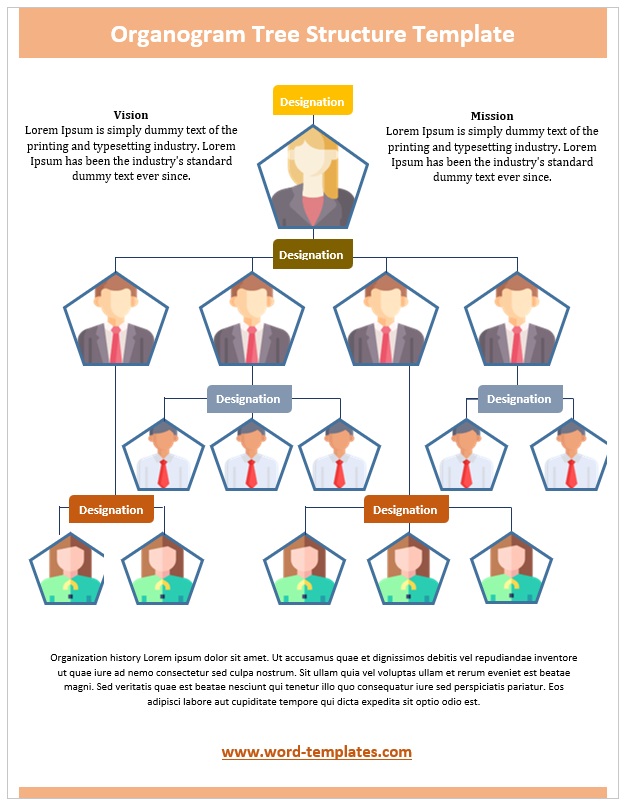
Building a Tree Chart in Word
Word’s SmartArt hierarchy layouts produce a branching chart automatically, which saves drawing connector lines by hand:
- Set the page to landscape first (Layout ? Orientation). Branching charts spread sideways, and starting in portrait means rebuilding the layout later.
- Insert ? SmartArt ? Hierarchy, then choose one of the branching layouts — “Organization Chart” or “Horizontal Hierarchy” both produce a tree shape.
- Build it in the Text Pane rather than clicking boxes: Enter adds a box at the same level, Tab demotes one level (creating a new branch), and Shift+Tab promotes back up. Typing a whole four-level structure this way takes a couple of minutes.
- Group the bottom level. Rather than a box per person, use one box per role with a count — “Field Engineers ×7”. It keeps the chart legible and means you don’t redraw it every time someone joins.
- Reduce font size on lower levels if the chart is getting wide. SmartArt shrinks text automatically, but setting levels 3 and 4 a point or two smaller yourself usually reads better.
- Balance the branches. If one division has six sub-teams and another has one, the chart looks lopsided — consider splitting the large division onto its own second chart and showing only its head on the main one.
Reading the Levels
A tree chart’s value is that the number of levels is immediately visible, and that number tells you something. Each level between the front line and the top is a step that decisions and information have to travel through — so a five-level tree for a forty-person company usually indicates more management layers than the size warrants, while a two-level tree for four hundred people means managers are carrying spans of control nobody can supervise properly.
Drawing the chart is often how organizations notice this. Teams reporting to the wrong level, a manager with fourteen direct reports, a division head with one, or a role that appears on nobody’s branch at all — these are easy to miss in a staff list and obvious in a tree.
Frequently Asked Questions
What is a tree structure organogram?
An organizational chart drawn as a branching diagram — one position at the top splitting into progressively wider levels below. It shows the same reporting relationships as any org chart, laid out in a way that keeps deep hierarchies readable.
When should I use a tree layout instead of a top-down chart?
When the structure has four or more levels, or many positions at the bottom. Branching spreads the chart sideways and keeps each level distinct. For shallow structures with two or three levels, a top-down layout is simpler, and for organizations with few management layers a horizontal chart often reads better.
How do I make a tree diagram in Microsoft Word?
Set the page to landscape, then Insert ? SmartArt ? Hierarchy and pick a branching layout. Add positions through the Text Pane, using Tab to create a new branch level and Shift+Tab to move back up. Or start from one of the templates above with the branching already built.
How many levels should an org chart have?
As few as the organization genuinely needs. Every level adds a step for decisions and information to pass through, so extra layers slow things down — but too few leaves managers with more direct reports than they can supervise. Drawing the tree is usually how the imbalance becomes visible.
Should I put every employee on the chart?
Not on a tree chart of any size. Name individuals down to team-leader level, then group the rest by role with a count — “Support Desk ×6”. It keeps the chart on one page and means routine staff changes don’t require a redraw.

Pete Smith is a Business Management graduate and a passionate advocate for practical, accessible resources that empower professionals and entrepreneurs to succeed. With a strong foundation in organizational strategy and operational efficiency, Pete combines academic knowledge with real-world insights to simplify complex business processes. He is the creator behind a growing online platform dedicated to offering free, high-quality documents, templates, and actionable tips designed to save time and improve productivity.