List templates are pre-designed structures that let you capture, organize, and share information without rebuilding a table from scratch. Whether you’re working in Microsoft Lists, a SharePoint list template, a Word list template, or an Excel list template, the core idea is the same: a reusable blueprint that speeds up data entry, enforces consistency, and minimizes errors. Modern workplaces rely on a template library to standardize project trackers, inventory sheets, employee directories, and more—saving teams hours of repetitive setup. In this guide you’ll discover the full catalog of built-in Microsoft?365 list templates, learn how to create a custom list template for SharePoint, download free list templates for Word and Excel, and master the step-by-step process of saving and reusing templates across Teams and Google Sheets. By the end, you’ll have a clear roadmap to leverage list templates for faster collaboration, better data integrity, and a smoother workflow.
What Is a List Template?
A list template is essentially a pre-configured data framework that encapsulates column definitions, formatting rules, view settings, and optional default content. When the template is applied, the underlying structure is instantly reproduced, allowing users to begin populating information without spending time on the repetitive task of recreating tables, forms, or validation logic. Because the schema is stored once and referenced many times, the risk of inconsistencies across similar projects is dramatically reduced.
How it differs from a document template
Although both concepts share the idea of reuse, a list template focuses on structured data rather than free-form documents. A document template such as a Word letterhead provides static layout and placeholder text, whereas a list template defines data types—single line text, choice fields, dates, numbers—and how those fields interact within a list-based application. This distinction makes list templates ideal for scenarios where the same set of attributes must be captured repeatedly, such as asset inventories, task trackers, or contact directories.
Where you encounter them
In the Microsoft ecosystem, list templates appear across several services: Microsoft Lists offers built-in templates like Asset manager or Content scheduler; SharePoint lets administrators save custom lists as .stp files; Word and Excel provide list-style table templates that can be saved as .dotx or .xltx files; and Google Sheets supports reusable spreadsheet templates that behave similarly. Regardless of the platform, the core purpose remains consistent—provide a ready-made skeleton that accelerates data collection, enhances collaboration, and enforces standardization throughout an organization.
Why Use List Templates?
Here are some key points that explains as why using ready-made list templates is worthy trying.
Accelerated onboarding and rapid project start-ups
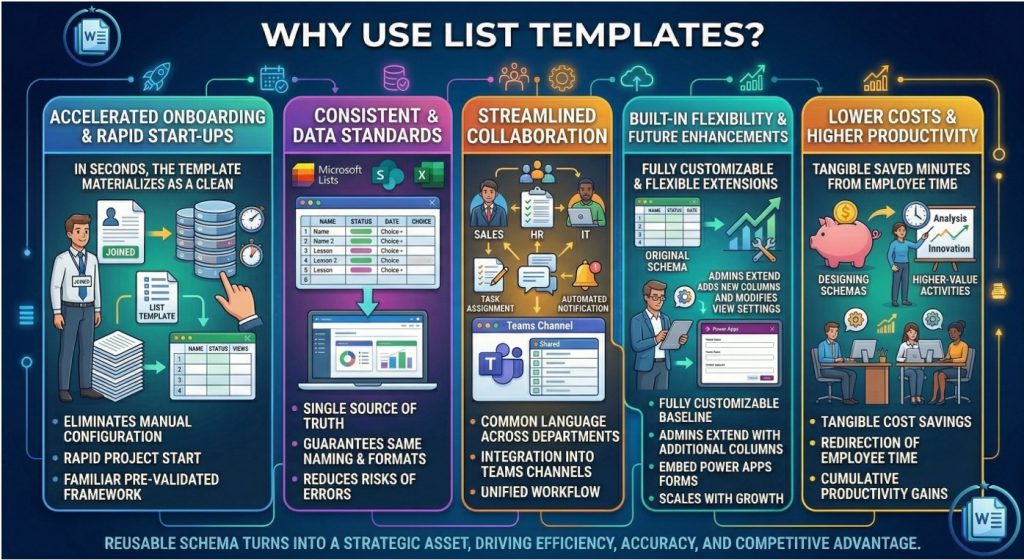
When a new team member joins or a fresh initiative is launched, the first obstacle is often the need to recreate the same set of columns, validation rules, and view layouts that other groups have already refined. By pulling a ready-made list template, the entire structure materializes within seconds, eliminating the manual configuration that would otherwise consume valuable time. This instant availability shortens onboarding cycles, lets project managers focus on strategy instead of spreadsheet mechanics, and ensures that every stakeholder begins work with a familiar, pre-validated framework.
Consistent data standards across the organization
Data consistency is the foundation of reliable reporting and sound decision-making. A single source of truth—whether it is a Microsoft Lists inventory template, a SharePoint custom list saved as an .stp file, or an Excel list template stored in a shared library—guarantees that every record follows the same naming conventions, choice fields, and date formats. Because the schema cannot be altered inadvertently when the template is reused, downstream analytics, Power Automate flows, and Power BI dashboards receive clean, predictable input, reducing the need for time-consuming data cleansing routines and minimizing the risk of reporting errors.
Streamlined collaboration and reduced duplication of effort
When multiple departments adopt the same list template, they automatically speak a common language. Teams can exchange lists, copy data between sites, or integrate lists into Teams channels without worrying about mismatched column headings or incompatible data types. This interoperability fosters collaboration, as users can comment, assign tasks, or trigger automated notifications directly from a shared list, confident that the underlying structure will interpret each action consistently. The result is a smoother hand-off between groups, fewer duplicated efforts, and a more cohesive workflow across the enterprise.
Built-in flexibility for future enhancements
Although a list template provides a fixed baseline, it remains fully customizable. Administrators can extend the original schema with additional columns, modify view settings, or embed Power Apps forms without breaking the template’s core identity. This balance of rigidity and adaptability means that as business processes evolve, the same template can be refined rather than discarded, preserving historical continuity while accommodating new requirements. In short, list templates act as a living, version controlled asset that scales with the organization’s growth.
Lower operational costs and higher productivity
Because the time spent designing, testing, and maintaining repetitive list structures is dramatically reduced, the organization experiences tangible cost savings. Employees can redirect the minutes saved per list into higher-value activities such as analysis, customer interaction, or innovation. Over months and years, the cumulative productivity gain compounds, turning a simple reusable schema into a strategic asset that drives efficiency, accuracy, and ultimately, a stronger competitive advantage.
Popular Types of Printable Business Templates
Here is our collection of free Business Templates ready to print in your premises.

Price List Templates
Total Certificates: 10 Templates

Contact List Templates
Total Certificates: 10 Templates

Professional Reference List Templates
Total Certificates: 15 Templates

Inventory List Templates
Total Certificates: 06 Templates

Task List Templates
Total Certificates: 07 Templates
Task List Templates
Total Certificates: 07 Templates

Checklist Templates
Total Certificates: 11 Templates

Grocery List Templates
Total Certificates: 30 Templates

Export Packing List Templates
Total Certificates: 3 Templates

Monthly To-Do List Templates
Total Certificates: 3 Templates

Shopping List Templates
Total Certificates: 7 Templates
Shopping List Templates
Total Certificates: 7 Templates

Packing List Templates
Total Certificates: 10 Templates
Types of List Templates
Collectively, these following five families of list templates—Microsoft?365, SharePoint, Word, Excel, Google Workspace, and third party collections—cover the full spectrum of data-capture needs across modern workplaces. Understanding the strengths and integration points of each type enables teams to select the most appropriate blueprint, ensuring that every list they create is both instantly useful and aligned with enterprise-wide data standards.
Built-in Microsoft?365 List Templates
Within the Microsoft 365 ecosystem, the Lists app ships with a collection of ready-made templates that address common business scenarios. Each template embeds a predefined set of columns, conditional formatting, and default views that align with the purpose of the list, whether it is tracking assets, scheduling content, managing issues, or maintaining a contact directory. Because the templates are native to the platform, they appear instantly when a user creates a new list from the Teams, SharePoint, or Lists interface, and they inherit the security model, integration hooks, and Power Automate triggers that are already configured for the Microsoft cloud. This seamless integration makes the built-in templates the quickest path to operational readiness for any organization already using Microsoft?365.
Custom SharePoint List Templates
SharePoint expands the concept of list templates by allowing site owners to capture an existing list, its columns, views, and optional content as a reusable .stp file. The “Save list as template” feature—accessible from the List Settings ribbon—stores the definition in the List Template Gallery, where it can be downloaded, versioned, and later re-imported to any other SharePoint site collection that permits custom scripting. This approach is particularly valuable for enterprises that maintain strict governance policies because the template can be audited before deployment, ensuring that required metadata, validation rules, and workflow attachments are preserved. When the template is applied, the resulting list mirrors the original configuration, enabling rapid replication of complex business processes across departmental sites.
Word List Templates
Although Word is traditionally a document creation tool, its table functionality can be saved as a .dotx template that serves as a list scaffold. Users design a table with the desired column headings—such as Item, Quantity, Price, and Status—apply table styles, and then save the file as a Word list template. When the template is opened, the table appears pre-formatted and ready for data entry, while the rest of the document can host instructions, branding, or explanatory text. This format is ideal for printable checklists, inventory sheets, or any scenario where a static layout is required alongside narrative content, and it integrates smoothly with Microsoft Teams and SharePoint document libraries for shared access.
Excel List Templates
Excel’s strength lies in its ability to handle large data sets, calculations, and visualizations. By creating a workbook with a structured table, defining column data types, and optionally embedding formulas or data validation, users can save the file as an .xltx template. Every time the template is opened, a fresh worksheet appears with the predefined schema while preserving any embedded logic. Organizations often use Excel list templates for budgeting, project tracking, and reporting because the same file can later be imported into Power BI or connected to Power Automate flows, turning a simple spreadsheet into a dynamic data source.
Google Docs and Google Sheets Templates
For teams that operate primarily in the Google Workspace, Google Sheets offers a template gallery where users can publish custom sheet designs that other members can copy with a single click. These templates behave similarly to Excel list templates but reside in the cloud, enabling real time collaboration and instant sharing via Drive permissions. Google Docs can also host tables saved as part of a document template, providing a hybrid solution where narrative sections coexist with tabular data. Because Google’s APIs support programmatic creation and population of sheets, developers can automate the provisioning of list templates for onboarding or recurring workflows.
Third-Party and Community Driven Templates
Beyond the native platforms, a thriving ecosystem of third-party providers supplies downloadable list templates in formats ranging from CSV and JSON to specialized XML schemas for project management tools such as Trello or Asana. These community curated assets often target niche use cases—event planning, HR onboarding, or equipment maintenance—and can be imported into the primary list template platform of choice, extending the reach of the core template concept. By leveraging these supplemental resources, organizations can quickly adopt industry-standard structures without having to design each list from ground up.

Pete Smith is a Business Management graduate and a passionate advocate for practical, accessible resources that empower professionals and entrepreneurs to succeed. With a strong foundation in organizational strategy and operational efficiency, Pete combines academic knowledge with real-world insights to simplify complex business processes. He is the creator behind a growing online platform dedicated to offering free, high-quality documents, templates, and actionable tips designed to save time and improve productivity.